2.2 Create a Key
Goal: generate an API Key for client authentication, and store it safely.
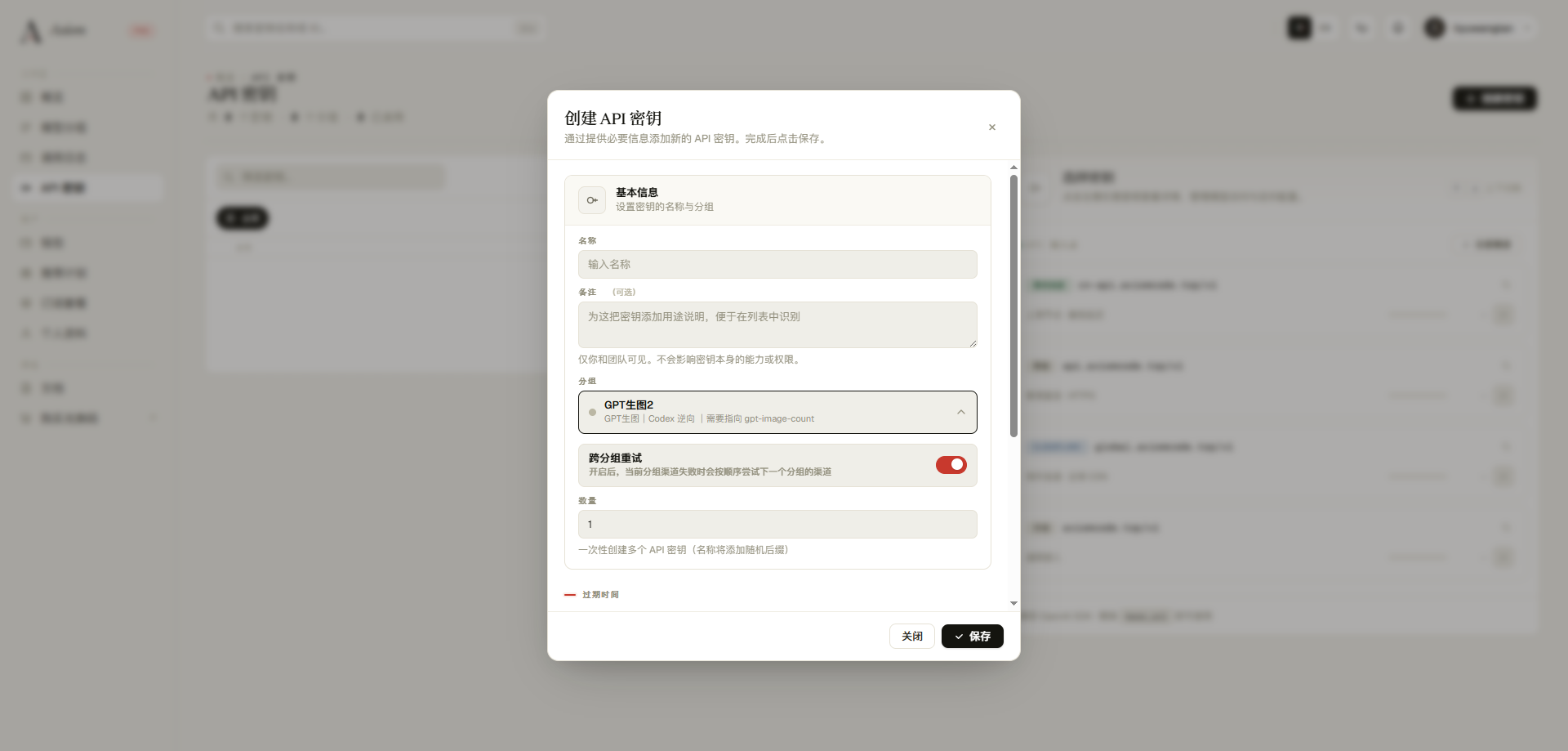
1. Click "Create Key"
On the key list page, click the "Create Key / New Key" button at the top.
2. Fill In the Key Details
| Field | Required | Description |
|---|---|---|
| Name | Yes | Give the key a name you can recognize at a glance, such as mac-codex or ci-pipeline, to make future management easier |
| Quota Limit | No | Set a spending cap for this individual key; once exceeded, the key is automatically disabled without affecting your main account balance |
| Allowed Models | No | Restrict which models this key can access (for example, allow only Claude Sonnet / Opus) |
| Expiration | No | Set an expiration time, ideal for temporary sharing scenarios |
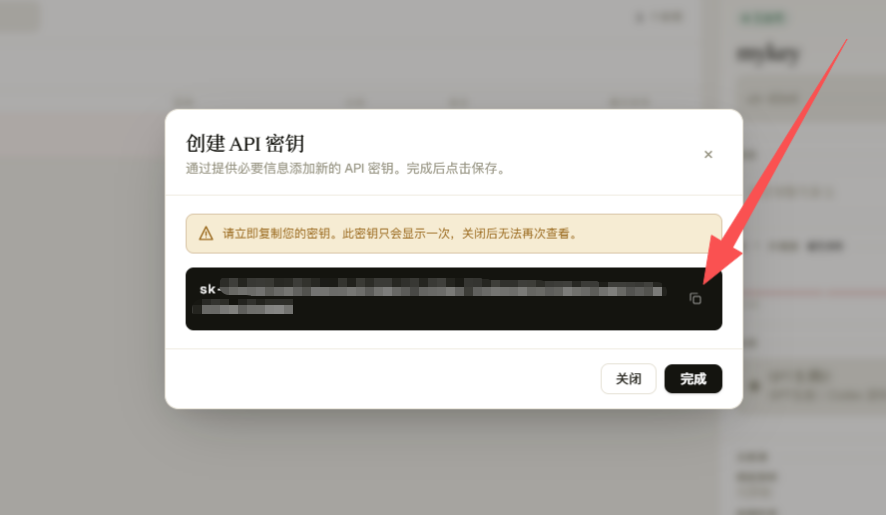
3. Submit and Copy the Key
Click "Confirm Create" and immediately copy the displayed key (format sk-XXXX...) into your password manager.
Shown Only Once
Once you close the dialog, the full string cannot be viewed again. If you forget to copy it, your only option is to delete and recreate it.
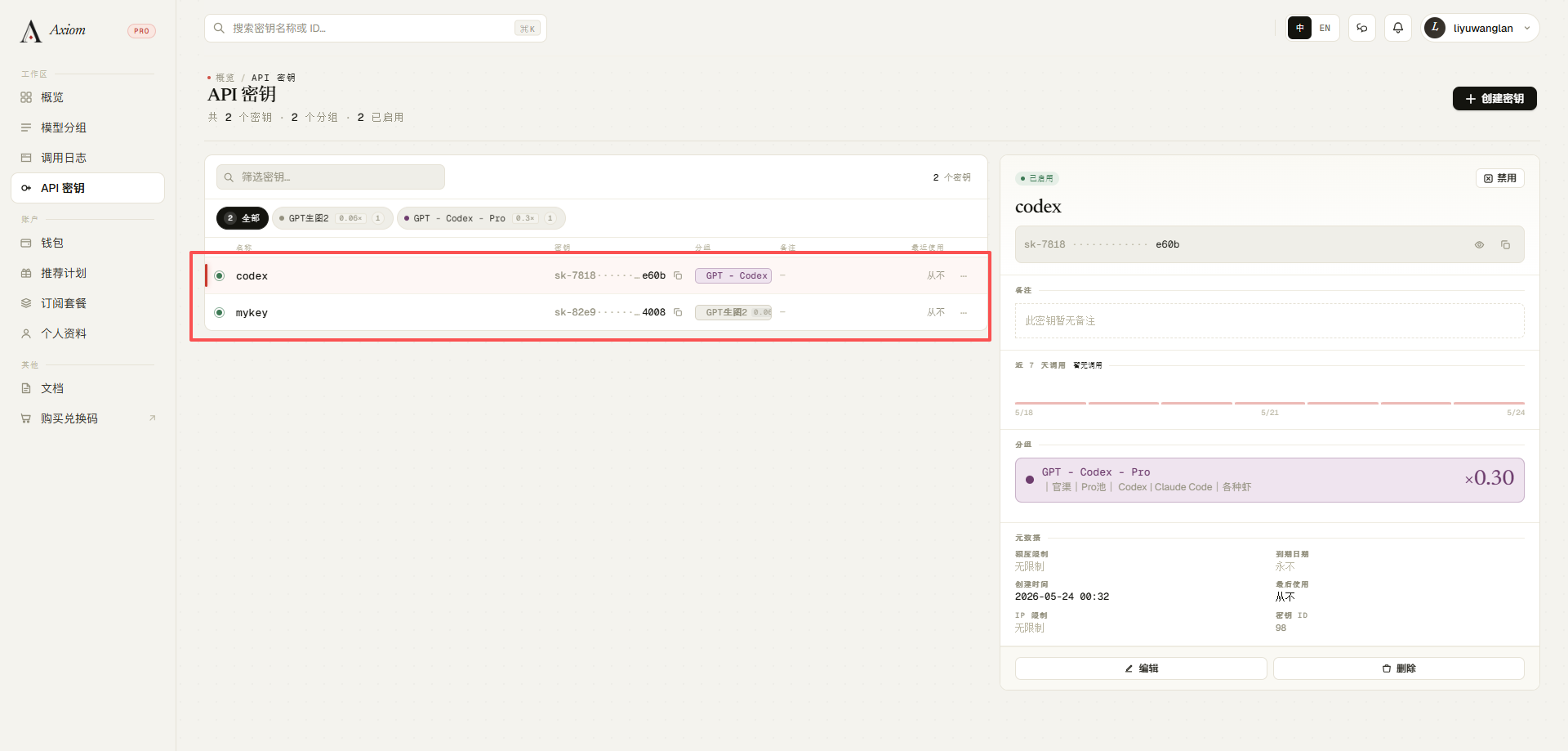
4. Return to the List to Confirm
Close the dialog, and the newly created key will appear in the list.
Security Advice
Create separate keys per device / project / member, and set a "Quota Limit" for each. That way, if one key leaks, you can disable it individually and keep the loss contained.
Next: 2.3 Integration Config